How to Download Videos on Telegram Web: A Single and Batch Chrome Extension Tutorial
How to Download Videos on Telegram Web: A Single and Batch Chrome Extension Tutorial
On a desktop computer, open Telegram Web K in Chrome and install the verified Telegram Video Downloader extension to save individual videos that are already loaded and that you have permission to access. For batch processing, scroll to load the target media first, then select items in the extension panel and download them. The extension cannot obtain channel access on your behalf, and it should not bypass the save restrictions set by the creator.

Concept diagram: it illustrates the single and batch download workflow and is not a real interface screenshot of Telegram or the extension.
Choose the Right Download Method First
If the video comes from a group, channel, or private chat that you are already signed in to and have permission to view, a Chrome extension is usually more direct than copying a link. If you only save a public Telegram link once in a while, you can also try Telegram online tool first. Neither method automatically grants you permission to access private channels.
| Use case | Recommended method | What to do before you start | Main limitations |
|---|---|---|---|
| Save the one video you are looking at | The extension's single download button | Open the message containing the media and wait for it to load | The button position changes as the extension or Telegram Web is updated |
| Save several media items in the same conversation | The extension's batch panel | Scroll to the target time range first so the media enters the page | Usually only content that has already loaded can be detected; the free quota is subject to the extension's current interface |
| Handle one public message link | Telegram online tool | Copy a publicly accessible message link | Content that requires sign-in or is permission-controlled may not resolve |
Review Environment for This Article
The following information was cross-checked on this machine and on public pages on August 4, 2026. This article did not use a real private channel to test bypassing save restrictions, and it makes no guarantees about speed, success rate, file limits, or support for private content.
| Item | Value reviewed this time |
|---|---|
| Operating system | Windows 11 Pro 10.0.26200 |
| Browser | Google Chrome 150.0.7871.188 (desktop) |
| Telegram Web | WebK: `https://web.telegram.org/k/%60%EF%BC%9BTelegram The official app page lists both WebK and WebA |
| Extension | Telegram Video Downloader 2.2.5.8; the Chrome Web Store shows an update on June 8, 2026 |
| Review date | August 4, 2026 (UTC+8) |
| Scope of review | Checked the installation page, store version, public feature description, and authentic previews from the product side; no real Telegram account was signed in to download private content |
Install the Chrome Extension
- Open Telegram Video Downloader extension installation page, then go to the Chrome Web Store listing it points to.
- Check the extension name, the developer website domain
downloadvideos365.com, the current version, the most recent update time, and the privacy disclosure, so you do not install a same-named program from a search ad or a third-party archive. - Click “Add to Chrome” and confirm after reading the permission prompt. Google's official guidance stresses that you should only approve extensions you trust.
- After installation, click the extensions menu to the right of the address bar and pin the extension to the toolbar so you can open the batch panel easily.
- On a computer managed by your employer or school, administrators may forbid installing extensions; Incognito mode and Guest mode also cannot add extensions directly.
Download a Single Telegram Web Video
- Open Telegram Web K in Chrome and sign in using Telegram's official flow. Do not enter your verification code or password into an extension pop-up or a third-party web page.
- Go to a channel, group, or chat you have permission to access, and find the target video.
- Wait for the video thumbnail and the message to load completely. If necessary, scroll up and down slightly so the extension re-detects the current message.
- Find the green “download” button below the video or image and click it. The button text, colour, and position may change with version updates.
- Wait for the download progress in the top-right corner of Chrome to finish, then choose “Show in folder” to confirm that the file really landed on disk.
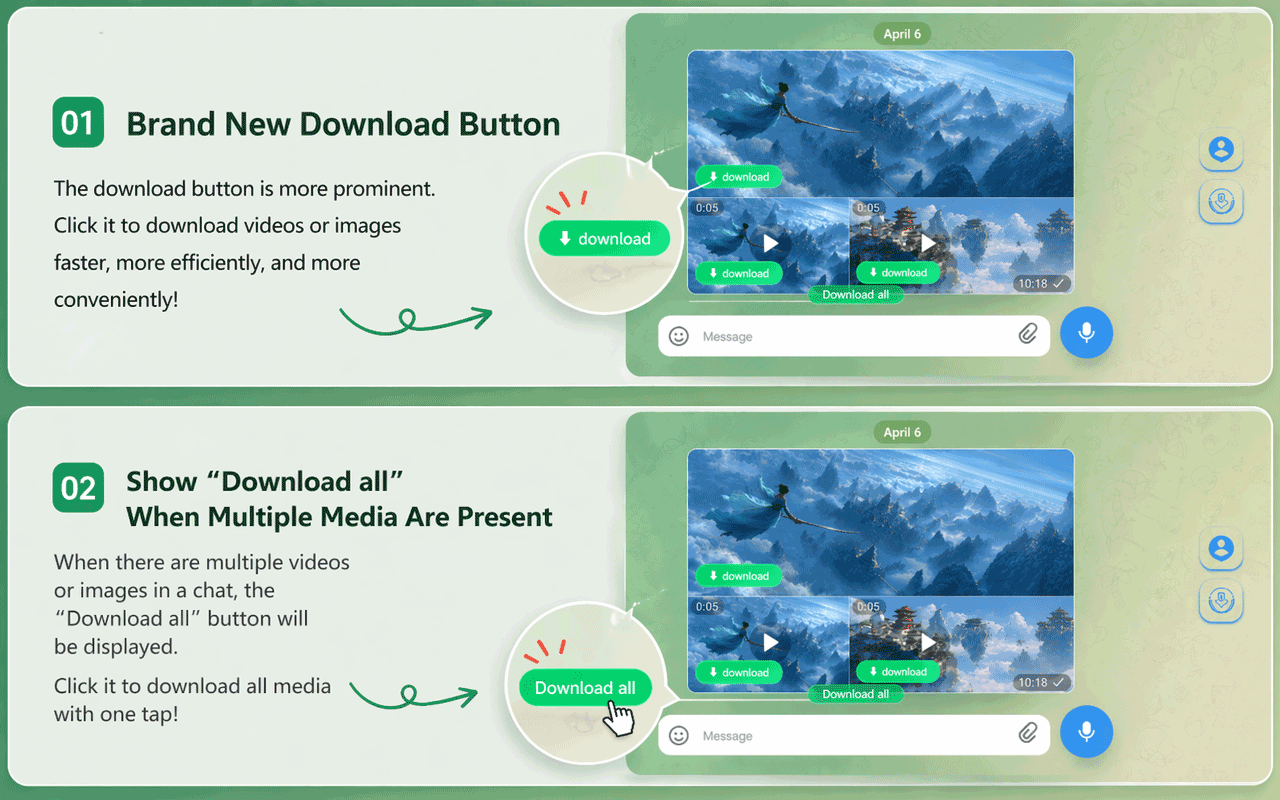
Authentic current preview from the product side: “download” appears below a single media item, and “Download all” may appear when one message contains several media items. The actual interface is subject to the current version.
If the button does not appear, do not refresh repeatedly or sign in again and again. First confirm that you opened web.telegram.org, that the extension is enabled, and that the message has loaded, then see the troubleshooting steps below.
Batch Download Videos in the Same Chat
- First decide the date or message range you need to save, and only work in chats you have permission to back up.
- Scroll upward from newer messages to load the media in the target range step by step. The extension can only handle items the page has already detected; do not assume it covers an entire historical channel in one pass.
- Click the extension icon in the Chrome toolbar to open the “Batch Download” panel.
- Select items one by one based on preview, type, and duration; run a small test batch first to confirm the save directory and file contents are correct.
- Click “Download Selected”. If Chrome asks whether to allow multiple files to download automatically, grant it only for verified sites and this task.
- Check the Chrome download list for successful, failed, and duplicate items. If a download is interrupted, check the network, disk space, and browser messages first, and do not treat “download started” as the same thing as the file having been saved completely.
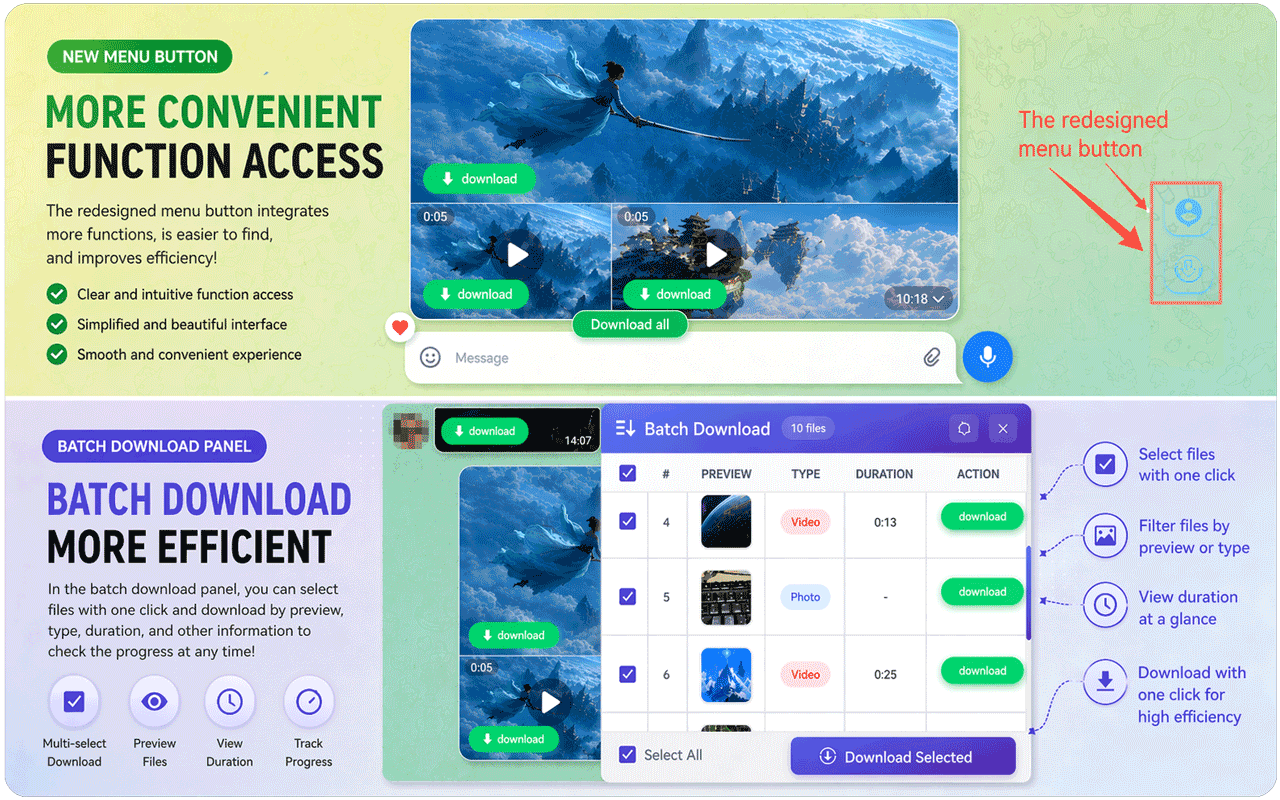
Authentic current preview from the product side: the batch panel lets you select items by preview, type, and duration and run “Download Selected”. This is a real product promotional image; it does not mean this article tested every conversation.
What to Do When the Single or Batch Button Does Not Appear
Work through the following order of checks, which is usually faster than reinstalling over and over:
- Confirm the page address. Prefer the WebK specified in the product tutorial; the store description also states compatibility with both WebK and WebA, but short-term differences can appear after a web update.
- Confirm the extension is enabled. Open
chrome://extensions/and check the extension toggle, error messages, and whether Chrome has disabled it. - Let the media actually load. Scroll to the target message and wait for the thumbnail to appear; the batch panel does not scan historical messages that have not been loaded out of nowhere.
- Refresh the page instead of re-entering your account. Refresh Telegram Web and open the message again. The extension does not need you to hand over your Telegram password.
- Reduce conflicts. Temporarily disable other extensions that modify the Telegram Web page or intercept downloads, then test with one small file you have permission to save.
- Check Chrome's download policy. Work or school devices, automatic download settings, security software, disk space, and network errors can all block multiple files.
- If it still fails, stop trying. Record the Chrome version, WebK/WebA, extension version, and the error, then contact extension support; do not upload screenshots containing chat content, verification codes, or account information.
Permissions, Privacy, and the Boundaries of Legitimate Use
Telegram's official documentation states that group or channel owners can enable “Restrict saving content”, which restricts forwarding, screenshots, and saving of media. This is an access boundary explicitly set by the creator. Even if a third-party tool claims it can handle restricted content, you should only save content that you own, that you have explicit authorisation from the author to save, or that you are legally allowed to save.
This extension is an independent third-party tool and is not an official Telegram product. On the day of writing, the developer's privacy policy stated that downloads happen locally and that no personal information is collected; at the same time, the Chrome Web Store privacy card listed disclosures about processing “Personally identifiable information” and “Financial and payment information”. The two statements are not fully consistent, so before installing you should re-read the store's latest “Privacy” and “Permissions” sections and decide whether to use it according to your own risk tolerance. A store badge or listing status is also not the same as an independent security audit of every version.
Telegram's content licensing terms also require users to respect rights holders' restrictions on the use of content and copyright. Do not scrape in bulk channels that are not yours, redistribute paid courses or copyright-protected videos, or re-upload, sell, or use downloaded files for harassment, surveillance, or training datasets. Where work materials or other people's privacy are involved, obtain written authorisation first and limit the scope of what you save.
Frequently Asked Questions
Can I download with the extension without signing in to a Telegram account?
The extension should not ask you to hand over your Telegram password, but to view chats that require sign-in you still need to enter your own account through Telegram Web's official login flow. For public message links you can try the online tool first; private content requires that you already have legitimate access rights.
Why can the video play but there is no download button?
Common causes are that the extension is not enabled, the media has not loaded yet, a recent page update created a compatibility difference, or another extension conflicts with the download policy. First confirm the WebK address and the extension version, then refresh the page, scroll to load the target message, and retest with a small file you have permission to save.
Can I batch download an entire channel at once?
Do not understand the batch feature as unconditionally exporting an entire channel. The store description requires scrolling through the chat first so that the media is detected, and the actual selectable range depends on what has loaded, the current extension version, account permissions, the free quota, and Chrome's automatic download settings.
Where are downloaded videos saved?
Chrome saves files to the system “Downloads” directory by default. On Windows this is usually \Users\<用户名>\Downloads. You can change the default location in Chrome under “Settings > Downloads”, or turn on “Ask where to save each file before downloading”.
Can I use both WebK and WebA?
Telegram's official app page confirms that WebK and WebA are both official web clients; the extension's store description currently says it is compatible with both. To reproduce this article's steps, use the WebK specified in the product tutorial first. If the button is missing, you can switch versions and retest, provided your account and permissions are secure.
Is this extension safe? Can it download private or restricted content?
It is a third-party extension, and being listed in the store or promoted by the developer is not enough to call it absolutely safe. A private channel must first be joined legally by your account; for content where an administrator has enabled save restrictions, you should respect the creator's settings and copyright requirements. Before installing, review the latest permissions, privacy disclosures, and developer policies.
Sources and Update Time
This article was updated on August 4, 2026 (UTC+8) with visits to the following pages:
- Telegram official app list: WebK and WebA
- Telegram official: protected content in groups and channels
- Telegram content licensing terms
- Chrome Web Store: Telegram Video Downloader
- Google Chrome Help: install and manage extensions
- Google Chrome Help: download files and save locations
- DownloadVideos365: Telegram Video Downloader extension page
- DownloadVideos365: Telegram online tool
- DownloadVideos365: Telegram Downloader privacy policy
Pages, extension versions, quotas, button positions, and privacy disclosures may all change; before you act, rely on the Telegram, Chrome Web Store, and product pages as they are on that day.