Telegram Download Extension vs Desktop Export: Which Is Better? Feature and Scenario Comparison
Telegram Download Extension vs Desktop Export: Which Is Better? Feature and Scenario Comparison
If you only want to pick one currently loaded media segment from a logged-in Telegram Web, the browser extension is more direct; if you want to back up a complete or single cloud chat and retain offline HTML or machine-readable JSON, prefer Telegram Desktop official export. The former is for media picking, the latter for structured archiving; neither increases account permissions or automatically grants copyright permission.

The cover uses browser download, desktop archiving, and a choice scale to show the two paths; it is a brand-neutral conceptual illustration, not the real interface of Telegram, Chrome, or the extension.
First, the conclusion: choose by 'small-scale picking' or 'long-term archiving'
The simplest criterion is not 'which has more features' but what files you ultimately need. To save just a few media items already visible on the web page, you can check the extension via Telegram Video Downloader extension installation page before using it; to keep chat text, chronological order, and media linked in an offline directory, choose Telegram Desktop official export.
| Your goal | More suitable tool | Reason | What to confirm first |
|---|---|---|---|
| Save a single or a segment of media already loaded on the current page | Browser extension | Can pick by media preview in Telegram Web; the result is standalone files | Extension ID, version, permissions, site access, and current charging rules |
| Back up a full cloud chat or a single chat | Telegram Desktop export | Official tool can export chats and selected photos, videos, and documents | Use the real Telegram Desktop app, not the web version |
| Read chat history offline | Telegram Desktop export as HTML | Official documentation describes HTML as a readable local web page | Export scope, dates, media types, and local storage space |
| Later retrieval or programmatic processing | Telegram Desktop export as JSON | JSON is a machine-readable format, but not a one-click restore package | First protect private messages and contact data in the export directory |
| Only one publicly accessible message link | Try the online tool first | No need to export an entire chat first | Telegram online tool can be used; links requiring login or invitation cannot gain access by pasting a URL |
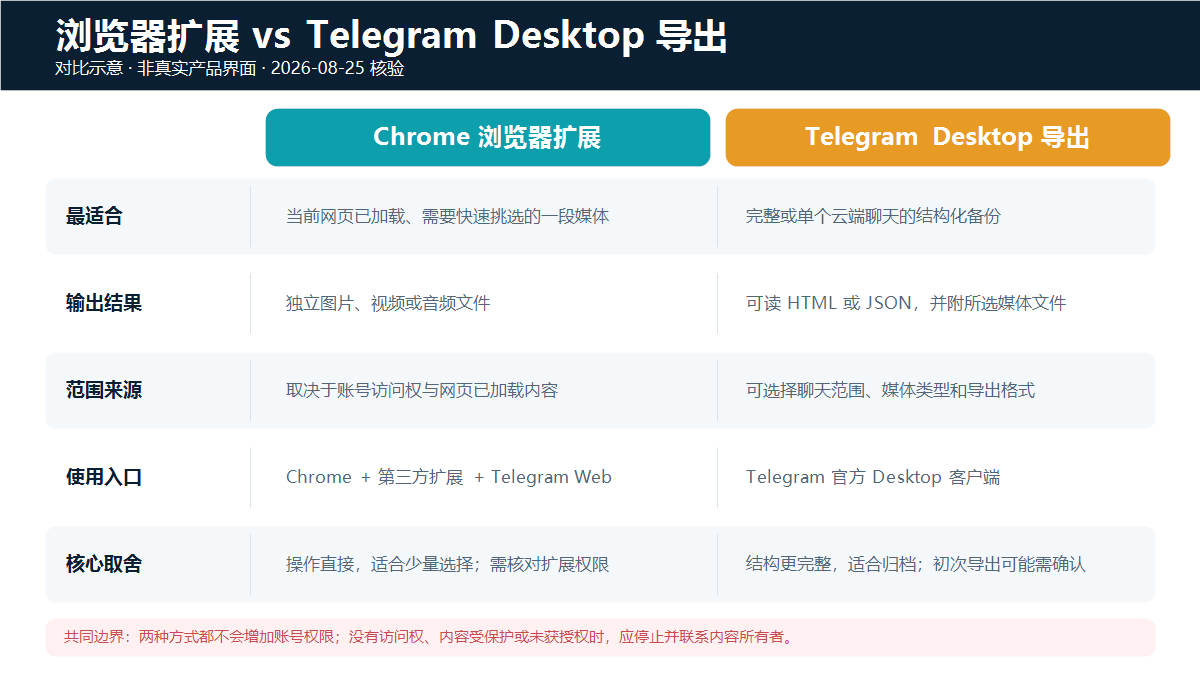
The image is a comparison illustration based on official documentation, the target store listing, and the product page; it is not a product interface screenshot.
Verification environment and evidence scope for this article
The following information was re-verified on August 25, 2026. Versions are used only to reproduce and judge current entry points and do not represent permanent compatibility:
| Item | Verification result |
|---|---|
| System | Windows 11 Pro, version 10.0.26200 |
| Browser | Google Chrome 151.0.7922.138 |
| Telegram Web | Web K 2.2 (673); Web A 12.0.41 |
| Target extension | ID gnkkimhkpmldcibibpdhegbjcgdpiakc; Google extension update service returned version 2.2.5.8 |
| Telegram Desktop | Official GitHub latest stable release is 7.1.2; not installed locally, and the steps in this article were verified against Telegram official export documentation |
We did not log in to a private Telegram account, read chats, download protected content, or test speed, success rate, large file limits, or free-use counts. Therefore, the following only compares verifiable entry points, outputs, and suitable scenarios; it does not package product marketing or documentation verification as a real download performance review.
Feature differences: one leans toward media files, the other toward chat archives
Browser extension is suitable for picking media from the current web page
The target extension is a third-party Chrome extension, not an official Telegram feature. The store listing and DownloadVideos365 product page position it as a single and batch media download tool for Telegram Web. The actual selectable scope usually depends on what the account can already access, how far the page has loaded, whether the extension recognizes the current Web K or Web A page, and whether Chrome allows consecutive downloads.
Its advantage is a short path: see media on the chat page, select it, and save it to the browser download directory. It is not a chat backup tool; when saving media alone, message context, send time, reply relationships, and complete text history do not automatically become a structured archive. For first use, you can follow Telegram Web single and batch download tutorial to establish a baseline containing only authorized samples.
Telegram Desktop export is suitable for systematic archiving
Telegram official documentation states that Desktop can export some or all cloud chats and their photos, videos, and other documents, and can also export a single chat's history from that chat's menu. The result can be readable HTML or machine-processable JSON.
This path is better for channel administrators, project teams, or individuals backing up history they manage or are permitted to save. The cost is longer preparation and organization time, and it creates a local directory containing private text, contacts, and media. Official guidance says: if you have just logged in to Telegram Desktop, the export request may need to wait 24 hours, or start immediately after confirmation from another logged-in device.
Official documentation describes the export result as offline HTML/JSON and does not describe it as a one-click restore package that can be imported back into Telegram. If the goal is only to archive channel media but you are unsure how to classify files, you can plan the directory together with Guide to batch downloading and archiving channel media.
Reproducible step 1: use the browser extension to pick current media
- Enter the Chrome Web Store from Extension installation page, and verify the extension ID must be
gnkkimhkpmldcibibpdhegbjcgdpiakc. Do not judge only by an extension with the same name. - Check the current version, publisher website, required permissions, and site access in the store details and
chrome://extensions. The version verified in this article is2.2.5.8; in the future, rely on what is displayed live. - Log in only at official Telegram Web K or Web A. Do not give verification codes, QR codes, two-step verification passwords, cookies, or session files to extension pop-ups or support staff.
- Open a media item you have the right to save and that plays normally, and wait for the preview to fully load. Run a single-file test first; do not select an entire channel at once.
- When batch selection is needed, follow the product page workflow to scroll to the target messages, let the web page load the corresponding media, then verify the quantity and types in the extension panel.
- Confirm the final status from
chrome://downloads, and check whether the file can open in the local folder. A button, progress animation, or 'request sent' does not mean the file has been fully saved.
If the button is missing, the download is blocked, or the file cannot be found, first rule out site access, automatic downloads, and save location issues; do not repeatedly pay or reinstall. You can also refer to Troubleshooting Telegram video download failures.
Reproducible step 2: export chats with Telegram Desktop
- Enter the Telegram Desktop download page for Windows, macOS, or Linux from Telegram official app list, and avoid treating the web version or an unofficial client as an export tool.
- After logging in, if you want to export all cloud chats, open
Settings > Advanced > Export Telegram Data; if you want to export only one chat, open that chat's menu and selectExport chat history. - Choose the chat scope, media types, and export format. Choose HTML for direct reading; choose JSON for retrieval, analysis, or migration to your own system.
- Choose a local directory with sufficient space and controlled access. Estimate the media scope before exporting to avoid copying unnecessary private files to a shared drive.
- If this is a newly logged-in Desktop session, follow official guidance to wait 24 hours, or confirm the export request from another logged-in device.
- After export, first open the HTML or spot-check the JSON, and verify the media directory, time range, and file count; then back up the archive encrypted to a location you control.
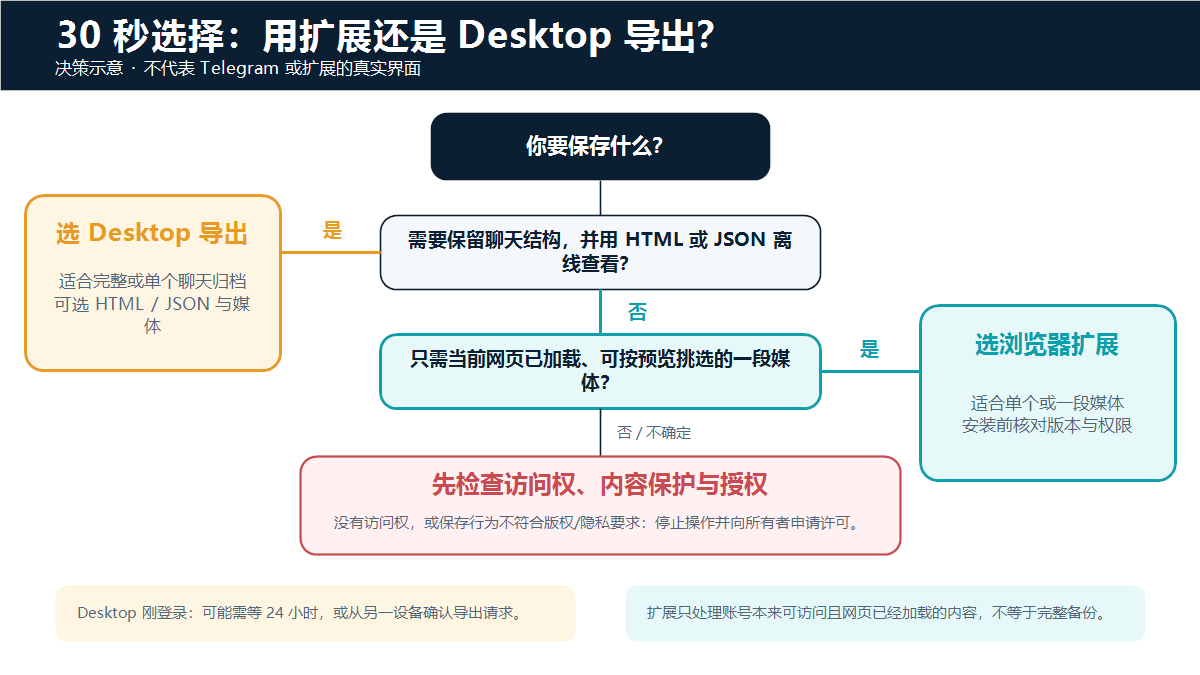
The decision diagram emphasizes output goals, access rights, and authorization boundaries; it is an information illustration and does not represent the real interface of Telegram or the extension.
Check these 7 items before installing or paying
The browser extension's price, free count, subscription period, and feature tiers may change; this article does not record a number that may soon expire. Before paying, confirm each item in the current store listing, in-extension checkout page, and related terms:
- Whether the extension ID is
gnkkimhkpmldcibibpdhegbjcgdpiakc, and whether the publisher website still points todownloadvideos365.com. - Whether the current version and update time match the product support description; do not pay just because the version number differs from an old tutorial.
- What free and paid features include, and whether batch selection is limited by count, time, or account.
- Whether it is a one-time purchase or automatic renewal, and where the currency, taxes, cancellation, and refund entry points are for the price.
- Which website data the extension requests to read or change, and whether access is allowed to
web.telegram.orgonly when needed. - Whether a third-party extension is really needed; if the task is complete chat archiving, try the official Desktop export first.
- Verify the workflow with a small media item you own or are authorized to use before deciding whether to buy; do not draw conclusions based on ratings, user counts, or slogans such as 'unlimited' or 'absolutely safe.'
Limitations, privacy, and lawful use boundaries
- Neither tool will make an account join a private channel or gain message access it did not originally have.
- Telegram content protection can restrict forwarding, copying, screenshots, and media saving. With protected messages, technical means should not be treated as the owner's authorization; you can first read Explanation of private channel video download restrictions.
- Save only content you created, manage, explicitly have permission to use, or are legally allowed to process. Do not republish copyrighted videos, private chats, course materials, or personal information without permission.
- If a third-party extension can access web page content, minimize site access permissions, review them regularly, and disable or remove the extension when not in use.
- Desktop exports may contain chat text, usernames, times, photos, and documents in a concentrated form. Do not send complete exports to unfamiliar support staff, upload them to public cloud drives, or submit them to online analysis services.
- Local archives should also have controlled access, encrypted backups, and timely deletion according to purpose; 'saved on my own computer' does not mean there is no privacy risk.
Frequently Asked Questions
Which should I choose, extension or Desktop, to back up an entire Telegram channel?
Prefer Telegram Desktop official export, provided the channel is in your cloud chats and you have the right to archive it. The extension is better for a segment of media already loaded on the web page that you need to pick by preview; it should not be treated as a full channel history backup.
Can a browser extension export chat text, times, and reply relationships?
The target product page positions the extension as a media download tool, and it cannot be assumed from this that it will generate a complete chat structure. When you need text history, chronological order, and readable offline pages, use Telegram Desktop HTML or JSON export.
Why is there no export option in Telegram Desktop?
First confirm that you are using the Telegram Desktop app, not Telegram Web. The all-data entry is at Settings > Advanced > Export Telegram Data; the single-chat entry is Export chat history in that chat's menu. If you have just logged in, you may also need to wait or confirm from another device.
Can the JSON exported by Telegram Desktop be restored directly to Telegram?
Official documentation positions JSON as a machine-readable offline result and does not promise one-click import back into Telegram. It is suitable for retrieval, analysis, or importing into your own system; before any secondary processing, still protect privacy and confirm authorization.
Is the extension's free version enough, and is it worth paying?
This depends on the actual quota displayed by the current version, your media volume, and whether you need batch features. This article does not cite volatile free counts or prices. First verify compatibility with one authorized media item, then check subscription period, refund entry, and permissions; if the goal is complete archiving, the official Desktop export is usually a better match.
Which one should be used for protected or private channels?
Look first at access rights and the content owner's permission, not at which tool to choose. Private channels require that the account can already access them; content protection will limit saving capabilities. If there is no explicit authorization, normal access is impossible, or saving may infringe copyright or privacy, stop and contact the owner.
Sources and update time
This article was last updated on August 25, 2026 (UTC+8). Versions, store information, prices, and page structures may change; please check the current page again before actual operation.
- Telegram official: Chat Export Tool
- Telegram official issue platform: export all or a single chat, HTML/JSON, and new login confirmation
- Telegram official app list
- Telegram Desktop official GitHub latest stable release
- Telegram API: Content protection
- Telegram content license terms
- Chrome Web Store: target Telegram download extension
- Google Chrome Help: install, manage, and limit extension site access
- Google Chrome Help: download files, consecutive downloads, and save location
- DownloadVideos365: Telegram Video Downloader extension page
- DownloadVideos365: Telegram online tool