Is Telegram Video Downloader safe? Permissions, privacy, and anti-scam checklist
Is Telegram Video Downloader Safe? Permissions, Privacy, and Anti-Scam Checklist
You cannot conclude that Telegram Video Downloader is safe just because it is 'listed in the Chrome Web Store.' Before installing, you should simultaneously verify the extension ID, publisher, permissions, site access, privacy disclosures, and update history; after installation, limit its access scope to Telegram Web and first test with authorized, low-sensitivity samples. Any page that asks for a Telegram verification code, cloud password, or requests that you disable security protections should be exited immediately.
Conclusion First: Which Conditions Must Be Met for It to Be Worth Installing
For browser extensions, "security" is not a permanent label, but a judgment related to the current version, installation source, permission scope, data flow, and content used. The object verified in this article is the extension with ID gnkkimhkpmldcibibpdhegbjcgdpiakc in the Chrome Web Store; the store shows version 2.2.5.8, with an update date of 2026-6-8.
The decision can be simplified into three categories:
| Conclusion | Applicable Conditions | Recommendation |
|---|---|---|
| Can be tried under controlled conditions | ID matches publisher; you understand page access and account/payment features; only process content you own or are authorized to handle | Limit site access, start with low-sensitivity samples, and recheck permissions after updates |
| Defer installation | Store disclosures, privacy policy, and product copy explanations are inconsistent; the purpose of newly added permissions is unclear; the payment domain cannot be confirmed | First ask the developer about data categories, retention period, third parties, and deletion methods |
| Stop immediately | Comes from cloud storage or an unfamiliar ZIP/CRX; asks for a Telegram verification code, cloud password, or session file; requests that you disable Safe Browsing | Close the page, delete the extension, and check account sessions and payment records |
This verification found: the item has Chrome Web Store Featured and publisher record signals, but the store introduction's 'does not collect data' is not fully consistent with the 'personally identifiable information, financial and payment information' listed in the store's privacy disclosure section; the public installation package also contains account, download quota, and payment-related logic. Therefore, the reasonable conclusion is neither 'it is definitely dangerous' nor 'it is absolutely safe,' but rather that data processing needs to be understood separately by function, and minimal authorization should be maintained.
What This Article Checked and What It Did Not Check
The verification environment and date are as follows:
- Operating system: Microsoft Windows 11 Pro 25H2, Build 26200, 64-bit.
- Browser: Google Chrome
151.0.7922.175. - Telegram Web K: live page resources show
2.2 (674). - Telegram Web A: real-time page resources show
12.0.43. - Target extension: Chrome Web Store version
2.2.5.8, Manifest V3. - Check date: 2026-8-31 (Asia/Shanghai).
The inspection methods include: reading the Chrome Web Store listing for that day, the developer privacy policy, official Google and Telegram documentation, and downloading the store's current public CRX3 package for static inspection. The SHA-256 of this installation package is 563B58266B15F58E9431788556EE73F2B10D4FE4DE478BF50C2A78467C7CDF89, which facilitates verifying the same sample.
This article did not log into any private Telegram account, did not read chats, did not download protected content, and did not conduct a full source code audit, malware sandbox analysis, or long-term network packet capture. Static inspection can confirm what capabilities the extension possesses, but it cannot on its own prove that these capabilities have been abused, nor can it guarantee that future updates will maintain the same behavior.
What Chrome Store badges can tell you
The target entry currently displays Featured and indicates that the publisher has a good track record and that the extension follows recommended practices. These are all valuable positive signals: according to Google's official documentation, Featured extensions are reviewed by the Chrome Web Store team for technical practices, user experience, design, and platform API usage; the Established Publisher signal, meanwhile, relates to identity verification and a sustained positive track record.
But a badge is not line-by-line proof of the code, nor is it insurance that 'all future versions will be zero risk.' After an extension updates, it may add permissions, account features, or new third-party services; the publisher's account may also be taken over. The correct use is to treat the badge as a first-layer filter, then continue checking:
- Whether the store address and extension ID match exactly.
- Which permissions the installation popup displays.
- Which data categories are disclosed in the 'Privacy' section.
- Whether Chrome requires acceptance of new permissions after an update.
- Whether the actual login, payment, and support domains opened match the publisher's description.
Which permissions the current version actually declares
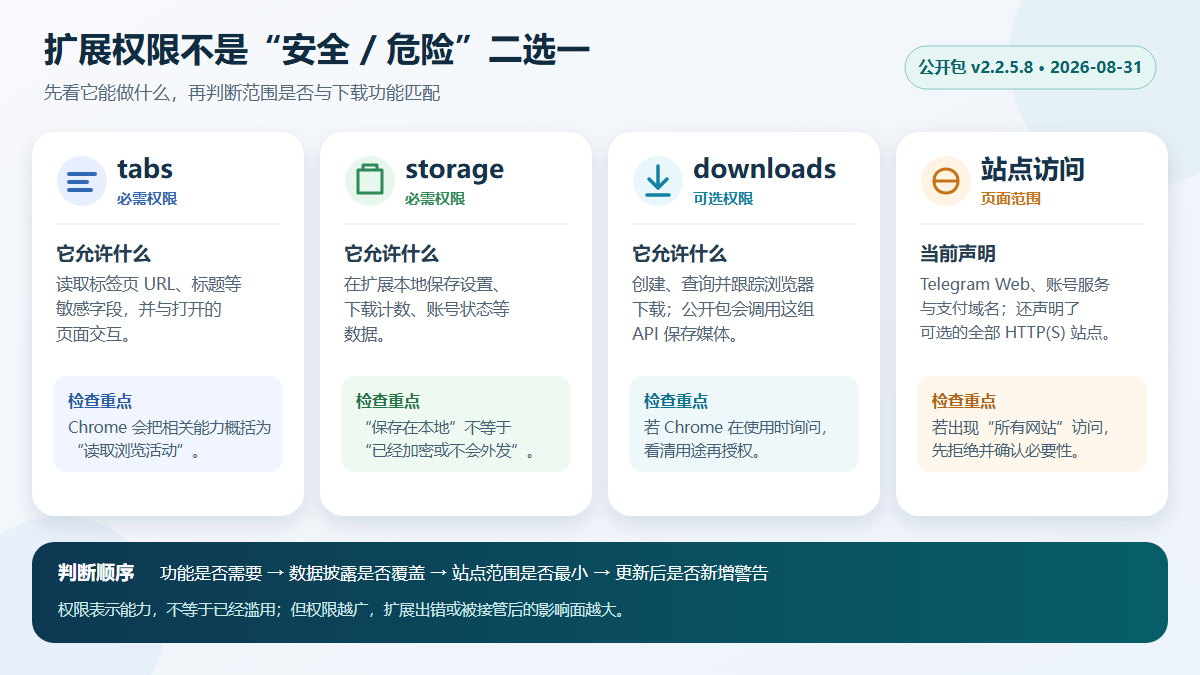
The manifest.json of the public package declares the following scope. Permissions indicate actions the extension is capable of performing; they do not automatically mean it has already sent chats or media; however, the broader the capability scope, the greater the impact surface in the event of a program defect, supply chain issue, or account takeover.
| Permission or scope | Currently public package | Potential impact | How users should evaluate |
|---|---|---|---|
tabs |
Required permissions | Can access sensitive fields such as tab URLs and titles and communicate with tabs; Chrome summarizes the related capabilities as reading browsing activity | It is reasonable for a download extension to need to locate Telegram tabs, but it should not thereby gain access to unrelated website content |
storage |
Required permissions | Can store data such as settings, download quotas, and account status locally in the extension | “Saved locally” does not mean encrypted, nor does it mean never synced with a server |
downloads |
Optional permissions | Can create, query, and track browser downloads; the public package calls this API to save media and display progress | If Chrome asks at runtime, confirm that the current action is indeed a download you initiated |
https://web.telegram.org/* |
Required site access | Content scripts can observe and modify the Telegram Web page, adding download buttons to visible media | This is a high-trust scope required by core functionality; do not blindly test it on your main account with sensitive chats |
| Account and payment domains | Required site access | The current package declares tgd.vip.easyisgood.cn and *.kodepay.io, and includes account, quota, and payment logic |
The purpose of the domain should be clearly explained in the privacy policy and on the payment page; HTTPS only proves encrypted transmission, not that the business is trustworthy |
| All HTTP(S) websites | Optional site access | The current package also declares http://*/* and https://*/* as optional scopes |
If a prompt later appears to “read and change all your data on all websites,” deny it first unless the developer can explain the specific functionality and duration |
Google's official documentation states that after an extension obtains data permissions for a site, it can read, request, or modify page data within the matching scope. For a Telegram download extension, to identify visible media, it usually must observe the Telegram Web page; this is why “download buttons appear automatically” and “no page access permissions are needed at all” cannot both be accurate descriptions.
Page access is not the same as Telegram account credentials
Legitimate extensions do not need you to hand over your Telegram SMS/app verification code, two-step verification cloud password, or exported session files. You should log in to Telegram only on the official https://web.telegram.org/, and let Chrome's password manager verify the domain.
The target extension's current package includes its own email login, download quota, and payment features. The extension's own email verification code is not the same as the Telegram login verification code: even if you choose to use paid features, do not enter Telegram credentials into the extension popup, customer support forms, or payment pages.
The contradiction most worth checking in the privacy disclosure
The store description on the writing date claims that it does not collect user data, has no tracking, and downloads do not go through external servers; the Telegram downloader privacy policy also states that it does not collect, store, or transmit personal information, all downloads are completed locally, and it does not use cookies or tracking technologies.
At the same time, the “Privacy” section of the same store entry explicitly lists that the extension handles:
- Personally identifiable information;
- Financial and payment information.
Static inspection of the public package also reveals code and external domains related to email login, account status, download quota, user center, and payment services. This result cannot prove that media files are uploaded, nor can it prove that the payment service will read your bank card number; it indicates that “the media download path may be completed locally” and “the extension's account/payment features process personal data” may both be true. Therefore, the privacy policy should clearly distinguish:
- What is processed when not logged in and not paying;
- What is sent and saved when using an email account;
- Which entity and domain handle payment;
- How long data is retained, how to delete or export it;
- Which fields remain in the browser and which fields are sent to the server;
- Whether there are analytics, error logs, customer service, or anti-abuse records.
Before these scopes are clearly explained, you should not extend 'local download' to 'all functions have zero data processing'. If you do not need account or payment capabilities, prioritize not logging in, not binding payment information, and only using necessary download functions.
7-step reproducible check before and after installation
1. Enter the store from the confirmed page
After entering the Chrome Web Store from the DownloadVideos365 extension installation page, you still need to verify the address bar and extension ID:
gnkkimhkpmldcibibpdhegbjcgdpiakc
Do not install ZIP, CRX, or developer mode scripts through search ads, cloud drives, group files, or unfamiliar 'cracking tutorials'. Names and icons can be copied, but extension IDs are harder to fake.
2. Read the installation pop-up, don't just click 'Add extension'
Google explains that permission warnings indicate the extension may perform the corresponding actions, which does not mean it is necessarily dangerous. Conversely, the absence of prominent warnings does not mean zero risk, because some permissions do not display warnings separately, and prompts for multiple permissions may be merged.
Compare the pop-up content item by item with the core functions: Telegram page access and download permissions have obvious uses; if camera, microphone, clipboard, all websites, proxy, native app communication, etc. suddenly appear, additional explanation is needed.
3. Compare the store's 'Privacy' section and developer policy
At least record the data categories, policy update time, developer website, contact method, and third parties. When the marketing paragraph is inconsistent with the structured privacy disclosure, take the more conservative interpretation and ask the developer for the specific scope, rather than assuming 'the store made a mistake'.
4. Restrict site access to Telegram Web
The official path provided by Chrome is:
- Open the 'Extensions' menu.
- Go to 'Manage extensions'.
- Open the 'Details' of the target extension.
- Check 'Site access' and select on click, specific sites, or all sites.
If the function allows, prioritize selecting specific sites and only keep https://web.telegram.org/*. Do not directly open all websites for troubleshooting, and do not allow incognito mode by default; browser configurations involving online banking, email, enterprise backends, or password managers should be separated from download extensions.
5. Use a separate browser profile and low-sensitivity samples
Create a Chrome profile that does not save work email, online banking, or enterprise admin logins, and sign in only to the necessary Telegram account. Start by testing with a single non-sensitive video that you uploaded yourself, that is publicly available to save, or that you have been authorized by the rights holder to use; do not start with customer groups, paid courses, private chats, or commercial materials.
During testing, record: extension version, Chrome version, Telegram Web version, permissions requested, domains opened, download filenames and save locations. If the page jumps to an unexpected login or payment domain, stop immediately.
6. Recheck After Updates
Chrome extensions update automatically. Google states that when new permissions that trigger warnings are added, the extension may be disabled until the user accepts them. When you see a new permission prompt, do not agree immediately just to restore functionality; first check the store update date, version, developer notes, and the purpose of the permissions.
7. Turn Off or Remove When Not in Use
Occasional downloaders can turn off the extension after the task is complete. Removing the extension will stop it from running further, but it will not automatically withdraw email, payment, or account data already submitted to third parties; such information must be handled according to the corresponding service's deletion, cancellation, or refund process.
If you only need to process public message links, you can first try the Telegram online tool; when you need to perform single or batch operations in Telegram Web, refer to the Telegram Web plugin download tutorial, and continue to retain the permission boundaries in this section.
Common Scams and High-Risk Signals
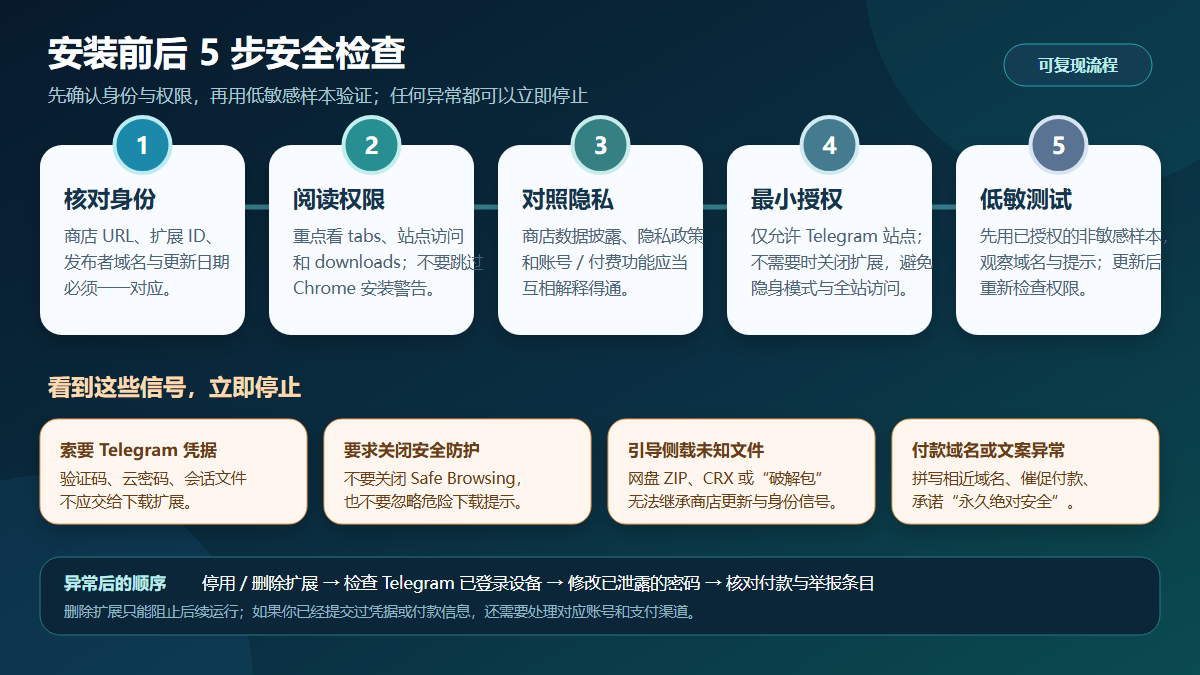
Any of the following signals warrants stopping, rather than continuing to try:
- Requests for Telegram credentials. This includes SMS/app verification codes, two-step verification cloud password, QR code login confirmation,
tdata, or session export files. - Guiding you to turn off Chrome security protections. Google recommends keeping Safe Browsing enabled; do not disable protections or force-keep dangerous downloads just because an extension is 'falsely flagged'.
- Asking you to sideload unknown packages. ZIPs, CRX files, userscripts, and 'cracked versions' outside the store bypass the listing's publisher identity, automatic updates, and reporting channel.
- A domain differs by only one character. Even if a payment or login page shows HTTPS, verify the full domain, publisher, and order entity. The padlock icon only indicates that the current connection is encrypted.
- Sudden requests for all websites or incognito access. Permissions unrelated to Telegram downloads may let the extension access email, online banking, work admin backends, and other sensitive pages.
- Using urgency to push payment. Unverifiable promises such as 'expires soon', 'permanent and unlimited', '100% safe', and 'official Telegram authorization' are not evidence of safety.
- Remote customer service requests browser data. Do not send the browser user directory, extension storage, account status that may be contained in the console, or complete screen recordings.
What to Do If You Suspect Account or Payment Information Has Been Leaked
Handle it in order from smallest to largest impact:
- Disable and remove the suspicious extension in Chrome, and save the store URL, ID, version, and abnormal prompts as evidence.
- In Telegram, check logged-in devices under 'Settings → Devices' and terminate any unrecognized sessions.
- If you have ever entered your Telegram cloud password on an unofficial page, change it immediately and confirm that your recovery email is secure.
- If you reused the email password, change the email password and enable multi-factor authentication.
- If you submitted payment information, check the order entity, payment channel, and recent transactions; if you notice anything abnormal, contact the payment provider or card issuer.
- Submit evidence through the Chrome Web Store listing's “Report a problem,” and do not publicly paste verification codes, session tokens, or full billing statements.
Simply encountering a missing download button, interrupted progress, or failed save does not mean the account has been stolen. You can first check the page version, site access, automatic downloads, and save directory according to Telegram video download failure troubleshooting; if the goal is a complete chat archive, compare download plugins and Telegram Desktop export and choose a tool that better meets permission and audit requirements.
Content protection, privacy, and boundaries of lawful use
Telegram's official documentation states that group or channel administrators can enable Restrict Saving Content to limit forwarding, screenshots, and saving media. This reflects the publisher's choice regarding audience and distribution scope. Download tools do not automatically grant you copyright, redistribution rights, or authorization to bypass access controls.
Telegram's content licensing terms require platform content to be used only for normal, lawful, and intended purposes, and in compliance with copyright conditions set by rights holders. In practice, the following boundaries should be observed:
- Save only content that you posted yourself, that is publicly permitted for download, or for which you have obtained explicit permission from the rights holder.
- Do not assume that because you can join a private channel, you may copy, sell, or redistribute its media.
- Paid courses, client materials, unpublished work files, private imagery, and content involving minors require stricter authorization and safeguarding measures.
- Do not use bulk tools to scrape chats, members, or media unrelated to the current purpose, and do not use Telegram data for model training or datasets without consent.
- If an administrator disables the saving function, first request the original files and usage permission from the administrator or rights holder, rather than treating technical feasibility as legality.
For the differences between private channels, administrator restrictions, and missing buttons, you can read more in Telegram private channel download restrictions.
Frequently Asked Questions
Does being listed on the Chrome Web Store mean it is absolutely safe?
Not necessarily. Store listing, Featured status, and publisher records are valuable screening signals, but they cannot replace checking permissions, privacy disclosures, version changes, and actual domains. Any extension can change its risk due to defects, updates, or a publisher account being taken over.
Why does a Telegram download extension need to read Telegram Web pages?
It needs to identify media already loaded on the page and add download buttons, which typically requires observing and modifying Telegram Web page content. This capability is related to the functionality, and it also means the extension may access information visible to you on that page, so you should limit the site scope and avoid blind testing in sensitive chats.
Does “downloads are completed locally” mean no data is sent at all?
No. Media files can be saved locally, while account login, download quotas, payments, customer support, or error handling may still connect to servers. You should separately verify the media path and account/payment data, rather than using the phrase “local processing” to cover all functionality.
Can an extension ask for Telegram verification codes or cloud passwords?
It should not. Telegram login should only be completed in the official web.telegram.org. An extension's own email verification code belongs to a separate account feature and must not require you to provide a Telegram SMS verification code, app verification code, two-step verification cloud password, QR code confirmation, or session file.
How can I minimize an extension's access scope?
In Chrome, under “Manage extensions → Details → Site access,” prioritize restricting it to Telegram Web; turn off the extension when not needed, do not allow incognito mode by default, and do not grant access to all websites. If core functionality stops working after restriction, decide item by item based on clear explanations, rather than opening everything at once.
What else needs to be done after deleting the extension?
If you only installed it but did not log in, pay, or enter credentials, deleting it can usually prevent it from running further. If you have submitted an email address, Telegram credentials, or payment information, you should also check Telegram's logged-in devices, change the relevant passwords, verify payment transactions, and request deletion of account data in accordance with the privacy policy.
Sources and Update Time
This article was updated on 2026-8-31 (Asia/Shanghai); the following pages were all revisited on the writing date:
- Chrome Web Store: Target Telegram Video Downloader extension
- Google Chrome Help: Install and manage extensions
- Chrome Web Store Help: Meaning of extension permission warnings
- Chrome Web Store Help: Featured and publisher badges
- Chrome Developer Documentation: Permission warning guidelines
- Chrome Developer Documentation: Protect extension user privacy
- Google Chrome Help: Dangerous sites and Safe Browsing warnings
- Telegram official: Restrict Saving Content
- Telegram content licensing terms
- DownloadVideos365: Telegram downloader privacy policy