How to Download Videos from a Private Telegram Channel: Methods and Limits When There Is No Download Button
How to Download Videos from a Private Telegram Channel: Methods and Limits When There Is No Download Button
Whether a video from a private Telegram channel can be downloaded depends on whether your account has been approved to join, and whether the channel has enabled "Restrict Saving Content". If you have joined and saving is allowed, you can use a visible save option or a verified Chrome extension after the video loads; if you do not have access or saving is restricted, you should contact the admin for authorization or request the original file, and do not attempt to bypass it.
First, Clarify: A Private Channel Is Not the Same as Saving Disabled
Telegram's official documentation states that a private channel requires being added by the owner, or joining through a valid invite link; this is the access permission for "whether you can see the channel." The channel owner can additionally enable content protection, restricting forwarding, copying, screenshots, and media saving. These are different settings, and you cannot judge whether a video can or cannot be downloaded based solely on the word "private."
| Your situation | Can you continue? | Recommended action | Do not do |
|---|---|---|---|
| Not yet joined the channel, invite link invalid, or admin approval needed | No | Contact the admin to get a valid invite or wait for approval | Do not submit your phone number, verification code, or session information to unknown websites |
| Joined, video loads normally, and owner allows saving | You can try the normal process | Use the visible save option; for batch processing, consider a verified browser extension | Do not treat tool marketing as a guarantee of success |
| Joined, but the channel has enabled Restrict Saving Content | Should not bypass | Request permission from the owner, ask to disable the restriction, or request the original file you are authorized to save | Do not use cracking scripts, bots, or scraping tools to circumvent creator settings |
| Can see the video, but only the extension button does not appear | Troubleshoot first | Check extension enablement status, site access permissions, WebK/WebA, and page loading state | Do not immediately conclude that the channel has enabled content protection |
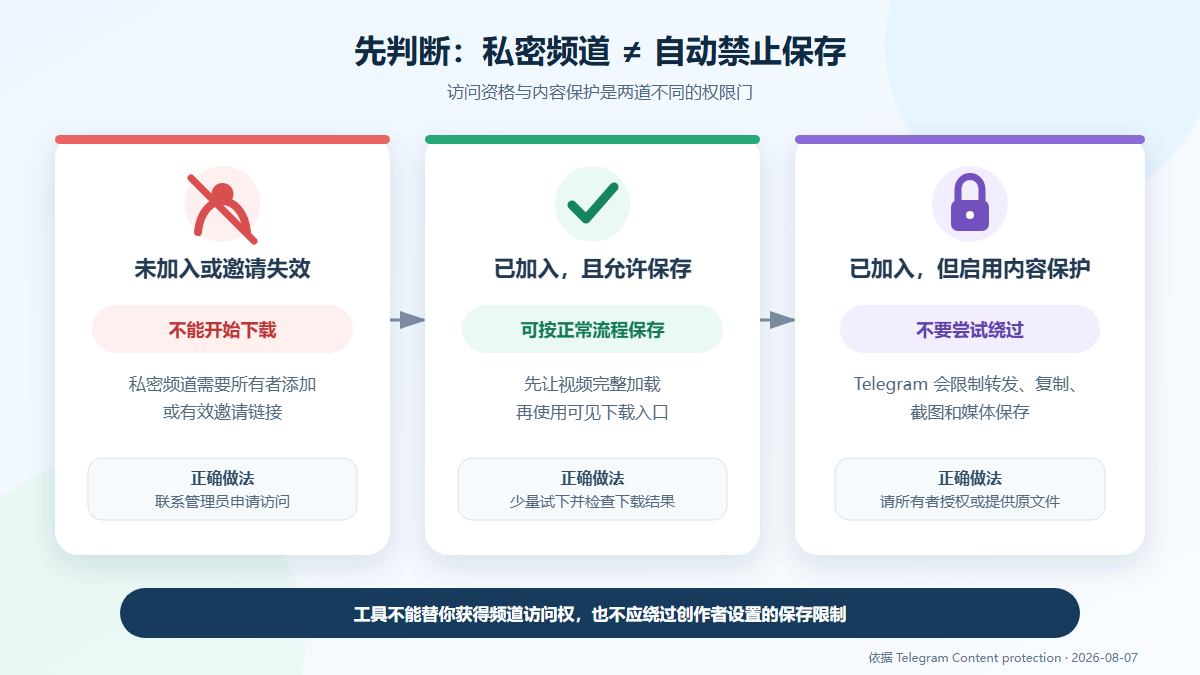
This is a flow diagram based on Telegram's official content protection documentation, not a screenshot of the Telegram product interface.
Review Environment for This Article
The following information was re-verified on August 7, 2026 (UTC+8). Because no real private channel account was used, and no protected content download was performed, this article will not claim that the extension can bypass official restrictions or guarantee that any file can be saved.
| Item | Value at this review |
|---|---|
| Operating system | Windows 11 Pro 10.0.26200, Build 26200 |
| Browser | Google Chrome 150.0.7871.188 (desktop) |
| Telegram Web | WebK and WebA as listed on Telegram's official apps page; the login page does not publicly disclose a stable build version number, so no specific build is fabricated |
| Chrome extension | Telegram Video Downloader 2.2.5.8; Chrome Web Store shows update on June 8, 2026 |
| Review scope | Checked official rules, store listing, on-site product page, product provider preview, and accessible internal links; did not log in to a private account, nor download media with content protection enabled |
If Joined and Saving Allowed, Follow These 6 Steps
1. First, Obtain Legitimate Access with Your Own Telegram Account
A private channel must be joined by the owner adding you, using a valid invite link, or through admin approval. Extensions, online parsing sites, and bots cannot obtain channel access rights on behalf of your account. Only log in through the official Telegram client or Telegram Web K, and do not give login verification codes, two-step verification passwords, or session files to third parties.
2. Confirm the Video Has Fully Loaded and Determine Whether Content Protection Is Present
Open the target message, wait for the thumbnail, duration, and playback controls to appear normally, and try playing a few seconds. If forwarding, copying, screenshots, or save options are generally unavailable in the same channel, the owner may have enabled content protection; however, a single missing extension button could also just mean the extension is not enabled, the page has not loaded, or compatibility has changed, so you cannot draw a conclusion from that alone.
3. Use the Visible Save Options Currently Provided by Telegram or the Browser First
If the video owner allows downloading, first check whether the media menu or browser video controls provide a save button. Google Chrome's official help notes: when the video owner or hosting site blocks downloads, the download action may be unavailable. At this point, do not treat a missing button as a technical fault that needs to be "cracked."
4. When an Extension Is Needed, Enter the Store from the Confirmed Page
Open Telegram Video Downloader extension installation page, then go to the Chrome Web Store linked there. Verify the extension ID gnkkimhkpmldcibibpdhegbjcgdpiakc, current version, update time, developer domain, permissions, and privacy disclosure before installing.
The Chrome Web Store displayed version 2.2.5.8 on the review date. The store description states the extension is compatible with WebK and WebA and can add a download button below the media; these are the developer's feature descriptions in the store, not equivalent to an official Telegram endorsement, nor an independent verification of successful downloads of protected content.
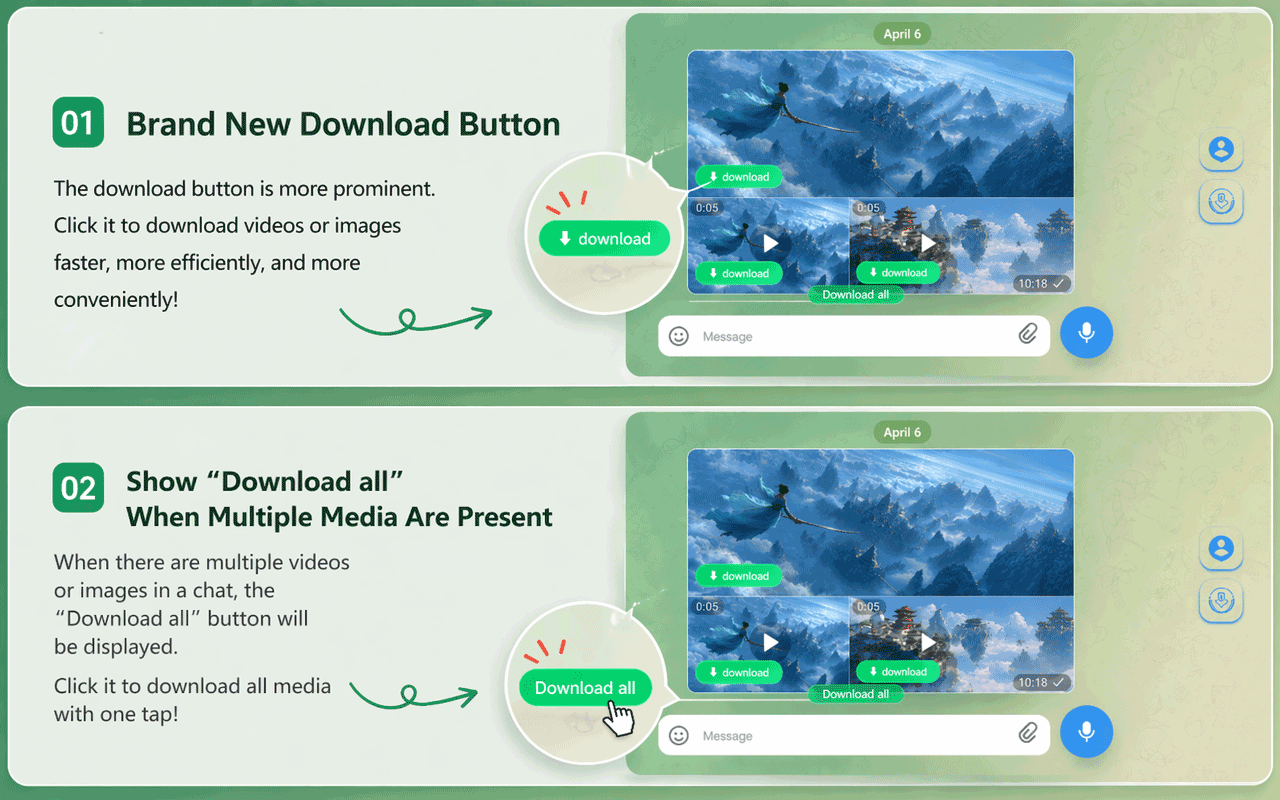
The product provider's real preview image shows the expected location of Download and Download all; the interface, quotas, and availability may change with extension or Telegram Web updates.
5. Grant the Extension Only the Site Access Needed to Complete the Task
In Chrome's "Extensions > Manage Extensions > Details", check whether the extension is enabled, and review the websites it can read and change. Google officially allows setting site access to "on click", "on current site", or specific sites; when dealing with private Telegram content, choose the minimum scope needed to complete the task, and you can also turn off the extension afterward.
6. Test with a Small File and Verify the Download Result
Return to the authorized channel and let the target video fully load; if Download appears below the media, first test with a small video you have the right to save. After completion, open Chrome's download records and verify the file name, type, size, and playback. Multiple file downloads may also be affected by Chrome's "automatic downloads" permission, disk space, network status, or organizational policy, so verify with a small file before expanding the scope.
No Download Button: Troubleshoot by Symptom
| Symptom | More likely cause | Safe handling |
|---|---|---|
| Channel won't open, or shows invalid invite, waiting for approval | No access rights, expired link, or admin approval needed | Contact the channel admin; do not buy so-called "unlock" from third parties or submit account credentials |
| Video plays, but forwarding, copying, and saving are generally unavailable | Channel may have enabled content protection | Request authorization from the owner, ask for the original file, or request a saveable version |
| Telegram's built-in options exist, but only the green extension button is missing | Extension off, insufficient site access, page not loaded, or version compatibility issue | In Chrome's extension management, enable and check web.telegram.org access, refresh the page, then retest WebK and WebA separately |
| Button appears but clicking does nothing | Media still loading, extension state abnormal, or page structure changed | Wait for loading, restart the extension and tab, and retest with only one video you are authorized to save; if it still fails, contact extension support |
| Chrome shows "blocked", "no permission", or download failed | Safe Browsing, download folder permissions, disk, network, or automatic download settings | Check the specific error in Chrome's download records; do not turn off security warnings just to download |
| Website, bot, or extension asks for Telegram verification code or two-step verification password | High-risk login request | Stop immediately; only enter credentials on Telegram's official login page, and check logged-in devices |
If you are just handling a publicly accessible message link, you can try Telegram online tool. It is not suitable for messages that require login, private invites, or are controlled by content protection. For regular WebK single and batch operations, refer to the previous Telegram Web video download tutorial.
Why No Bypass Steps Are Provided Once Content Protection Is Enabled
Telegram's official content protection documentation requires clients to treat protected messages as prohibited from forwarding, downloading, copying, and screenshots. When a channel owner enables Restrict Saving Content, it expresses a clear dissemination boundary. Even if some third-party product claims it can handle "restricted content," it does not mean you have obtained permission to download, copy, or redistribute.
There are three safer alternatives:
- Contact the channel owner, explain the purpose of saving, and obtain explicit permission.
- Request the owner to send the original file, or temporarily provide a copy that allows saving.
- When backing up chats you own or are authorized to save, use Telegram Desktop's "Export Telegram data" or individual chat's "Export chat history"; this feature is not a tool to bypass content protection, and restricted content should still respect the owner's settings.
Telegram's content licensing terms also require users to comply with copyright conditions imposed by rights holders on content use. Educational use, paid membership, or "personal saving only" do not automatically equal having copying and distribution rights; whether you can save, edit, or forward should be based on the owner's authorization and local law.
Privacy Check Before Installing Third-Party Extensions
Telegram Video Downloader is a third-party extension, not an official Telegram product. The store description on the review date contains developer statements such as "local processing, no data collection," but the store's privacy section also lists the categories of data it processes. Being listed, having a Featured badge, ratings, or developer marketing alone cannot lead to a conclusion of "absolutely safe." Before installing, directly check the latest permissions, store privacy disclosure, and developer privacy policy, and note the following boundaries:
- Do not send Telegram verification codes, two-step verification passwords, session files, or exported private chats to extensions, bots, or support.
- Limit site access scope to the websites and time needed to complete the task, and turn off or remove the extension afterward.
- Do not ignore Chrome's dangerous download, malware, or organizational policy warnings.
- When work materials, paid courses, minors' information, or others' privacy are involved, obtain written authorization first.
- Do not treat product page marketing about file formats, size, speed, or restricted content as tested conclusions in this article.
Frequently Asked Questions
Can videos from a private channel never be downloaded?
Not necessarily. Private means joining requires the owner, an invite link, or admin approval; if your account has legitimately joined, the video has loaded, and the owner has not restricted saving, you can use the normal save option that is currently visible. Being able to access does not equal having redistribution rights; you must still follow channel rules and copyright permissions.
If there is no download button, can I be sure the channel has enabled content protection?
No. A missing button can also be due to the extension not being enabled, insufficient site access, media not yet loaded, WebK/WebA compatibility changes, or Chrome download policy. Only when forwarding, copying, screenshots, and saving are all restricted at the same time is content protection more likely; ultimately, the owner's settings are authoritative.
Can a Chrome extension guarantee downloading protected Telegram videos?
No, it cannot be guaranteed. Product descriptions in the Chrome Web Store are provided by developers, and this article has not performed download tests on private or protected channels. Telegram officially requires protected messages to disable downloading, copying, forwarding, and screenshots; this setting should be respected, and you should request authorization or the original file from the owner.
Can Telegram Desktop export replace browser extensions?
For chats you own or are authorized to save, Telegram Desktop's official export feature is better suited for system backup, and can export chats and media. But it is not a solution to bypass access rights or content protection; a newly logged-in device may also need to wait or confirm the export request from another device.
Does using an extension require giving your Telegram password to the developer?
No, it does not, and it should not. Login should only occur in the official Telegram client or web.telegram.org. If any third-party page, bot, or support agent asks for a verification code, two-step verification password, QR code session, or exported files, you should stop and check Telegram's logged-in devices.
Is downloading videos from a private channel legal?
It depends on whether you have permission from the content owner, the channel rules, the copyright of the video itself, and applicable law. Joining the channel, paying a subscription fee, or using it only for personal use does not automatically grant copying or distribution rights. The safest approach is to obtain explicit authorization, save only necessary content, and avoid redistribution.
Sources and Update Time
This article was last verified on August 7, 2026 (UTC+8). Product versions, permission disclosures, and interfaces may change; before taking action, please refer to the current page.
- Telegram official channel FAQ: difference between public and private channels
- Telegram official: protected content in groups and channels
- Telegram API: Content protection
- Telegram official app list: WebK and WebA
- Telegram official: Chat Export Tool
- Telegram content licensing terms
- Chrome Web Store: Telegram Video Downloader
- Google Chrome Help: Install and manage extensions
- Google Chrome Help: Download files and automatic download permissions
- DownloadVideos365: Telegram Video Downloader extension page
- DownloadVideos365: Telegram online tool